# Reports

<figure><img src="https://3627599965-files.gitbook.io/~/files/v0/b/gitbook-x-prod.appspot.com/o/spaces%2F-MbfxQd0NPS3HPiroBm1%2Fuploads%2FSWwMivSsMV9jbg5Nzy7p%2FCapture%20d%E2%80%99e%CC%81cran%202023-02-22%20a%CC%80%2014.00.38.png?alt=media&#x26;token=4e4f5401-62c1-47d4-8530-69f3b095a432" alt=""><figcaption></figcaption></figure>

Digest Reports are email distributions which can be customized to send you the latest media results from your monitoring.

{% hint style="info" %}
You can create as many Reports as you wish.
{% endhint %}

{% embed url="<https://app.playplay.com/app/video/visibrain/how-to-create-an-automatic-report/8ee0aa3a-a69d-4fd2-91d5-f5d3c9faa1eb>" %}

## 1. Create a Report

By clicking on the "save" option on the [Explore](https://help.visibrain.com/~/revisions/Sg0jEnRI9hg61KE4OFRP/platform/explore) feature of your monitoring Topic, you can directly access the report creation feature. \
When you click on the "save" button, multiple options will appear: \
\- Create Alert\
\- Create Report

<figure><img src="https://3627599965-files.gitbook.io/~/files/v0/b/gitbook-x-prod.appspot.com/o/spaces%2F-MbfxQd0NPS3HPiroBm1%2Fuploads%2FnmyKHrW8Q2kWJR6j7JkA%2FCapture%20d%E2%80%99e%CC%81cran%202023-02-22%20a%CC%80%2014.01.02.png?alt=media&#x26;token=111b3740-f7e7-4769-91e7-1f7bb04cfd09" alt=""><figcaption></figcaption></figure>

You can also access this feature by clicking on Reports on the top of your platform.

<figure><img src="https://3627599965-files.gitbook.io/~/files/v0/b/gitbook-x-prod.appspot.com/o/spaces%2F-MbfxQd0NPS3HPiroBm1%2Fuploads%2F5CQUENdjKhVFF0MWk3TX%2FCapture%20d%E2%80%99e%CC%81cran%202023-02-22%20a%CC%80%2014.01.12.png?alt=media&#x26;token=0eb34108-b2fe-4b3c-a83d-7e53a4f31e41" alt=""><figcaption></figcaption></figure>

### Different steps

The first step: <mark style="background-color:green;">Add a title to your report</mark>&#x20;

{% hint style="success" %}
We recommend you choose clear and transparent titles for your reports (Daily Brand Monitoring, Influencer Detection for example).&#x20;
{% endhint %}

Secondly: <mark style="background-color:green;">Choose the list of recipients</mark>. \
You can add as many as you wish, this list can contain contacts who do not have access to Visibrain if you wish. \
\
Choose a delivery option, Visibrain offers 4 options: \
\- [Email](https://help.visibrain.com/~/revisions/Sg0jEnRI9hg61KE4OFRP/platform/reports/email) \
\- [Slack](https://help.visibrain.com/~/revisions/Sg0jEnRI9hg61KE4OFRP/platform/reports/slack) \
\- [Telegram](https://help.visibrain.com/~/revisions/Sg0jEnRI9hg61KE4OFRP/platform/reports/telegram)\
\- [SMS](https://help.visibrain.com/~/revisions/Sg0jEnRI9hg61KE4OFRP/platform/reports/sms) (optional feature on request)

{% hint style="info" %}
If you're interested in other reception types, get in touch with your Account Manager.
{% endhint %}

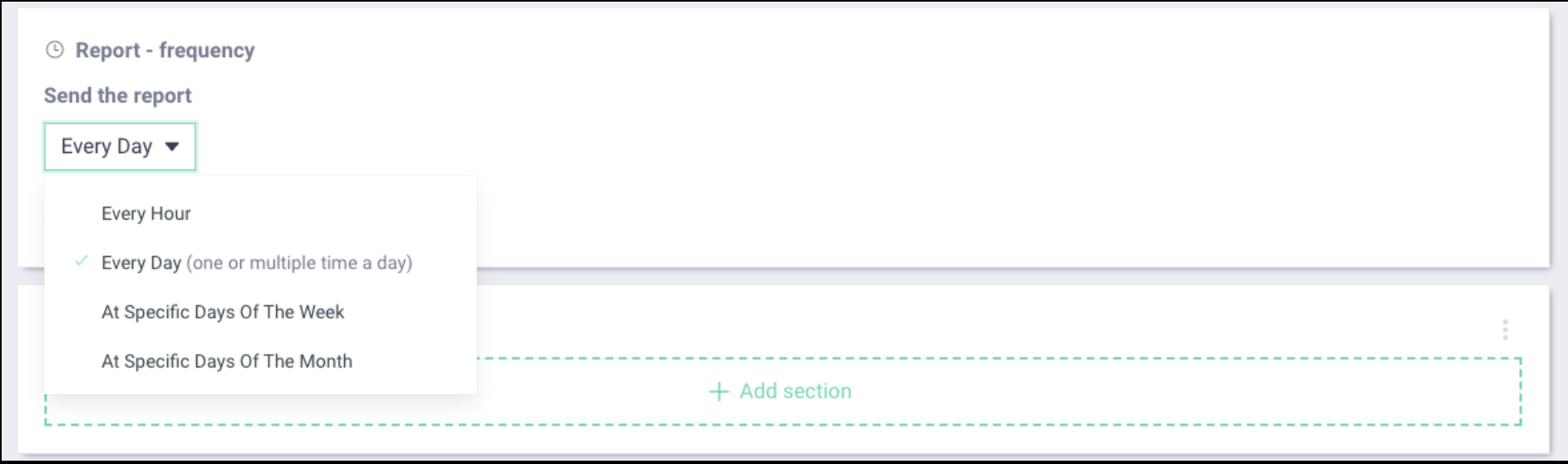
Finally, choose the frequency of deliveries, Visibain offers multiple options: \
\- Every hour\
\- Every day at a specific hour \
\- Specific days of the week (multiple days selectable)\
\- Specific days of the month (multiple days selectable)

<figure><img src="https://3627599965-files.gitbook.io/~/files/v0/b/gitbook-x-prod.appspot.com/o/spaces%2F-MbfxQd0NPS3HPiroBm1%2Fuploads%2FTMrBazHU9VFtIMdJImHV%2FCapture%20d%E2%80%99e%CC%81cran%202023-02-22%20a%CC%80%2014.04.33.png?alt=media&#x26;token=857da746-4e14-489b-a61d-c5ac3d34b7fe" alt=""><figcaption></figcaption></figure>

<figure><img src="https://3627599965-files.gitbook.io/~/files/v0/b/gitbook-x-prod.appspot.com/o/spaces%2F-MbfxQd0NPS3HPiroBm1%2Fuploads%2FJsi1Up7zMd5qtCsLNGbM%2FCapture%20d%E2%80%99e%CC%81cran%202023-02-22%20a%CC%80%2014.04.45.png?alt=media&#x26;token=34ff466e-1880-4b61-9b04-899e0b514ea6" alt=""><figcaption></figcaption></figure>

### Digest Setup

#### <mark style="background-color:green;">DEFAULT SETTINGS</mark>

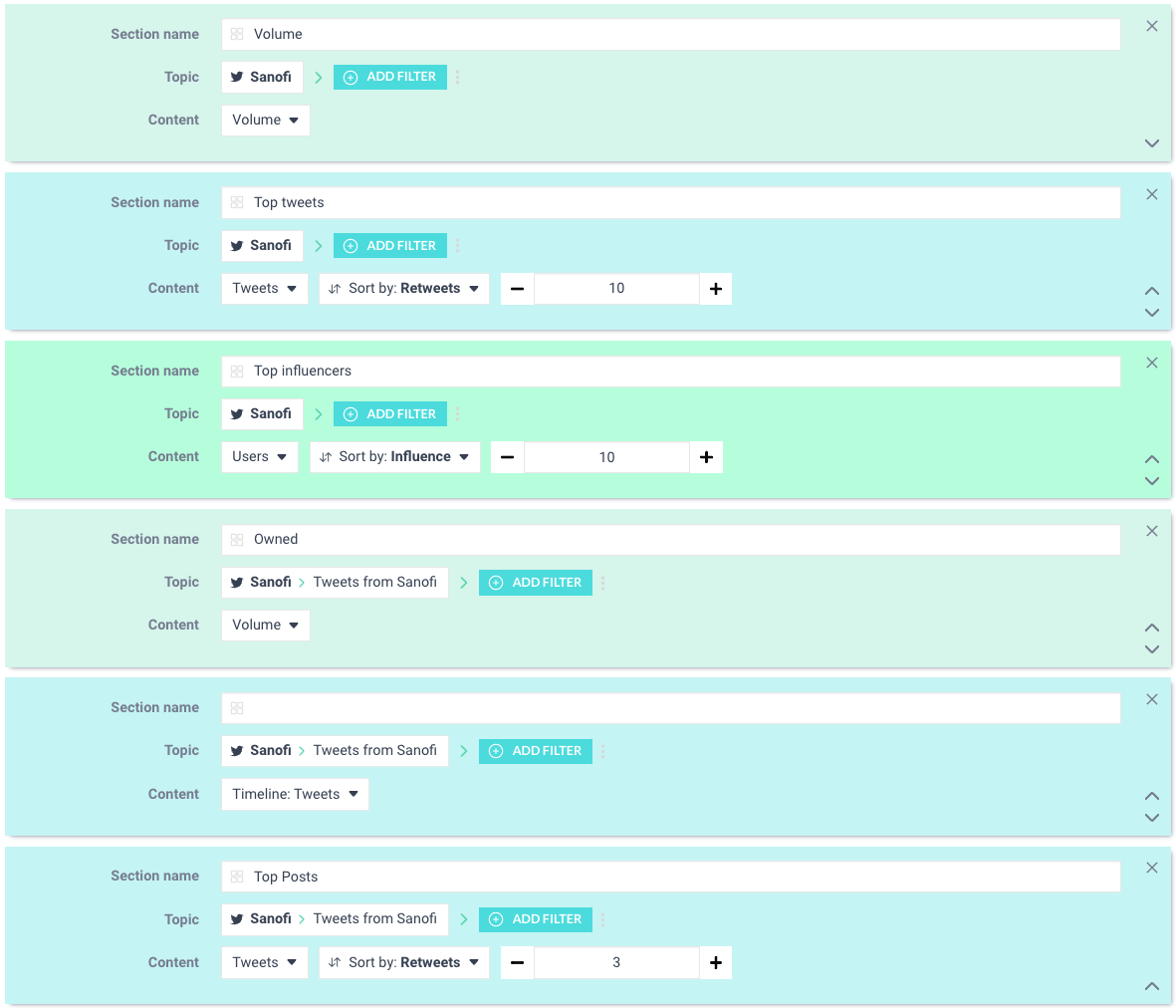
By clicking on "Create Report" on the Explore tab, a pre-designed report will appear based on the Topic / Subtopic you selected. \
This pre-selection is of composed of different sections: \
\- Volume \
\- Top Posts (ranked by media results)\
\- Top Influencers (ranked by influence)

<figure><img src="https://3627599965-files.gitbook.io/~/files/v0/b/gitbook-x-prod.appspot.com/o/spaces%2F-MbfxQd0NPS3HPiroBm1%2Fuploads%2FJXE51gRWG9zd30uiDdEM%2FCapture%20d%E2%80%99e%CC%81cran%202023-02-22%20a%CC%80%2014.06.10.png?alt=media&#x26;token=160120ee-1740-40cc-a539-52eac0feb419" alt=""><figcaption></figcaption></figure>

#### <mark style="background-color:green;">FROM SCRATCH</mark>

<figure><img src="https://3627599965-files.gitbook.io/~/files/v0/b/gitbook-x-prod.appspot.com/o/spaces%2F-MbfxQd0NPS3HPiroBm1%2Fuploads%2FxcKp9PCyZXGm9SdeyWuF%2FCapture%20d%E2%80%99e%CC%81cran%202023-02-22%20a%CC%80%2014.06.24.png?alt=media&#x26;token=57083202-b010-412f-896e-735e1200eef6" alt=""><figcaption></figcaption></figure>

By clicking on "Add Section", customize the sections you want to add to your digest.&#x20;

<figure><img src="https://3627599965-files.gitbook.io/~/files/v0/b/gitbook-x-prod.appspot.com/o/spaces%2F-MbfxQd0NPS3HPiroBm1%2Fuploads%2F6qY0y9oycgtrfZdDPVS6%2FCapture%20d%E2%80%99e%CC%81cran%202023-02-22%20a%CC%80%2014.06.33.png?alt=media&#x26;token=57463f9e-0685-41d9-a7b1-bf0c301b60e6" alt=""><figcaption></figcaption></figure>

Choose a Topic/Subtopic you want to base your section on.&#x20;

<figure><img src="https://3627599965-files.gitbook.io/~/files/v0/b/gitbook-x-prod.appspot.com/o/spaces%2F-MbfxQd0NPS3HPiroBm1%2Fuploads%2FJlfJV7raPNrjaiNyWjDG%2FCapture%20d%E2%80%99e%CC%81cran%202023-02-22%20a%CC%80%2014.14.12.png?alt=media&#x26;token=c381143f-9f76-44fb-8fe1-fa16f8ab7f59" alt=""><figcaption></figcaption></figure>

Choose from different parameters/values for each Monitoring Module with the option of ascending or descending order of results to quickly view the most impactful content first.

{% tabs %}
{% tab title="Twitter" %}
Volume \
Timeline: Tweets\
Timeline: Impressions\
Tweets\
Users\
Articles\
Links\
Hashtags\
Mentions\
Expressions\
Websites (Subdomains)\
Websites (Top Level Domains)\
Languages\
Emojis\
Genders\
Occupations\
Interests\
Countries\
Regions\
Cities
{% endtab %}

{% tab title="Instagram" %}
Volume\
Timeline: Posts\
Timeline: Impressions\
Timeline: Likes\
Posts\
Users\
Hashtags\
Expressions\
Mentions\
Tags\
Languages\
Emojis\
Post Types\
Image Content\
Image Category
{% endtab %}

{% tab title="Facebook" %}
Volume\
Timeline: Posts \
Timeline: Impressions\
Timeline: Likes\
Timeline: Reactions\
Timeline: Interactions\
Posts\
Links\
Pages\
Hashtags\
Expressions\
Mentions\
Websites\
Emojis\
Languages\
Countries\
Posts Types\
Reactions
{% endtab %}

{% tab title="Tiktok" %}
Volume\
Timeline: Posts\
Timeline: Impressions\
Timeline: Likes\
Timeline: Interactions\
Timeline: Views\
Posts\
Users\
Sounds\
Hashtags\
Expressions\
Mentions\
Languages\
Emojis\
Sentiment
{% endtab %}

{% tab title="Youtube" %}
Volume\
Timeline: Videos\
Timeline: Impressions\
Timeline: Likes\
Timeline: Interactions\
Timeline: Views\
Videos\
Channels\
Hashtags\
Expressions\
Languages\
Emojis\
Countries\
Cities\
Sentiment
{% endtab %}
{% endtabs %}

#### <mark style="background-color:green;">USE THE DIGEST TEMPLATE</mark>

By clicking on "Action" in the top left hand corner, you can add the Visibrain Digest Template of your choice on any given Topic / Subtopic.&#x20;

<figure><img src="https://3627599965-files.gitbook.io/~/files/v0/b/gitbook-x-prod.appspot.com/o/spaces%2F-MbfxQd0NPS3HPiroBm1%2Fuploads%2FZaqML3hlTiYuiY5rWxJf%2FCapture%20d%E2%80%99e%CC%81cran%202023-02-22%20a%CC%80%2014.14.46.png?alt=media&#x26;token=cb60a910-afe0-413d-97c4-ebe82ab3df2c" alt=""><figcaption></figcaption></figure>

#### <mark style="background-color:green;">FINALISE YOUR SETUP</mark>

Once you've set up your parameters and values, name your sections.

<figure><img src="https://3627599965-files.gitbook.io/~/files/v0/b/gitbook-x-prod.appspot.com/o/spaces%2F-MbfxQd0NPS3HPiroBm1%2Fuploads%2FU7U6a76EuTDBl6hUCXAV%2FCapture%20d%E2%80%99e%CC%81cran%202023-02-22%20a%CC%80%2014.15.57.png?alt=media&#x26;token=bea5ee42-ecdf-4cb1-b2c3-393fe85820f9" alt=""><figcaption></figcaption></figure>

{% hint style="success" %}
We recommend you give clear and transparent titles to your sections (Press Review, Post Review ...)
{% endhint %}

#### <mark style="background-color:green;">SNOOZE OPTION</mark>

The snooze option enables you to customise the days and hours at which you wish to receive your digest. The option is turned off by default.

<figure><img src="https://3627599965-files.gitbook.io/~/files/v0/b/gitbook-x-prod.appspot.com/o/spaces%2F-MbfxQd0NPS3HPiroBm1%2Fuploads%2FTZc0tT0VQI9M1qv12Ej8%2FCapture%20d%E2%80%99e%CC%81cran%202023-02-22%20a%CC%80%2014.16.52.png?alt=media&#x26;token=4d655e64-ea2b-4beb-a602-2e4ba6c6017c" alt=""><figcaption></figcaption></figure>

{% hint style="success" %}
We recommend using this option to pause the Digest outside of work hours for example or when you are not available.
{% endhint %}

#### <mark style="background-color:green;">SAVE YOUR SETTINGS</mark>

<figure><img src="https://3627599965-files.gitbook.io/~/files/v0/b/gitbook-x-prod.appspot.com/o/spaces%2F-MbfxQd0NPS3HPiroBm1%2Fuploads%2FFrQmthyqLVbMSB0fC7nj%2FCapture%20d%E2%80%99e%CC%81cran%202023-02-22%20a%CC%80%2014.19.12.png?alt=media&#x26;token=0ff27837-d8f3-4d2c-899f-6d2a4df6359b" alt=""><figcaption></figcaption></figure>

## 2. Reports Tab

This tab enables you to access all Reports (active and inactive) created on your account. When the "State" is turned off the Report is inactive.&#x20;

<figure><img src="https://3627599965-files.gitbook.io/~/files/v0/b/gitbook-x-prod.appspot.com/o/spaces%2F-MbfxQd0NPS3HPiroBm1%2Fuploads%2FrdPCfnAWW5aXWzFnKeV7%2FCapture%20d%E2%80%99e%CC%81cran%202023-02-22%20a%CC%80%2014.18.26.png?alt=media&#x26;token=cae07d2c-099f-4fb6-895b-3645cebd7ce0" alt=""><figcaption></figcaption></figure>

{% hint style="info" %}
If you turn a Report off, it will be turned off for all receivers of that report.
{% endhint %}

#### <mark style="background-color:green;">REPORT PREVIEW</mark>

Different preview options are available in your Report Tab, click on the "Action" button

<figure><img src="https://3627599965-files.gitbook.io/~/files/v0/b/gitbook-x-prod.appspot.com/o/spaces%2F-MbfxQd0NPS3HPiroBm1%2Fuploads%2FXxumUizglpJPAmuNnSOO%2FCapture%20d%E2%80%99e%CC%81cran%202023-02-22%20a%CC%80%2014.28.16.png?alt=media&#x26;token=29b85bfd-c4fa-43a6-9723-4a7485e7ecdd" alt=""><figcaption></figcaption></figure>

#### <mark style="background-color:green;">SEND BY MAIL</mark>

The "send by mail" option enables you to send out your Digest on a defined time span, by default all pre-defined contacts will be listed, you can add other email adresses if needed.&#x20;

<figure><img src="https://3627599965-files.gitbook.io/~/files/v0/b/gitbook-x-prod.appspot.com/o/spaces%2F-MbfxQd0NPS3HPiroBm1%2Fuploads%2Fd1ufBNetzi13JCMOdXxp%2FCapture%20d%E2%80%99e%CC%81cran%202023-02-22%20a%CC%80%2014.29.09.png?alt=media&#x26;token=b346a0be-0bb2-4eff-86e5-84c5375bf49f" alt=""><figcaption></figcaption></figure>

#### <mark style="background-color:green;">DOWNLOAD PDF</mark>

The "Download PDF" option enables you to export a PDF version of your Digest on a defined time span.&#x20;

<figure><img src="https://3627599965-files.gitbook.io/~/files/v0/b/gitbook-x-prod.appspot.com/o/spaces%2F-MbfxQd0NPS3HPiroBm1%2Fuploads%2Fb8gOMErT3NEpbrRTrxd2%2FCapture%20d%E2%80%99e%CC%81cran%202023-02-22%20a%CC%80%2014.29.38.png?alt=media&#x26;token=54d580d5-13b5-468d-aec3-837d5d52eb13" alt=""><figcaption></figcaption></figure>

#### <mark style="background-color:green;">VIEW WEB VERSION</mark>

The "View Web Version" enables you to preview your Digest on a defined time span.&#x20;

<figure><img src="https://3627599965-files.gitbook.io/~/files/v0/b/gitbook-x-prod.appspot.com/o/spaces%2F-MbfxQd0NPS3HPiroBm1%2Fuploads%2FFqmRBePMs7cPj21IrO5R%2FCapture%20d%E2%80%99e%CC%81cran%202023-02-22%20a%CC%80%2014.29.52.png?alt=media&#x26;token=6f992cda-cd63-4c62-9340-a7a7cc930ab3" alt=""><figcaption></figcaption></figure>

Finally the <mark style="background-color:green;">DELETE</mark> option enables you to delete your Report

{% hint style="info" %}
These Preview options enable you to check:

* Your setup
* The Data you are sending is right&#x20;
* Send out a Digest Preview to the recipients&#x20;
* Send data easily&#x20;
  {% endhint %}