# Create a new topic
To create a new Topic, click on the button "+ New topic" at the top right when you are on the TOPICS page :
{% hint style="info" %}
**You can't find the button "+ New topic" ?**
If you can't see the button "+ New topic", it's because you have a "reader" access and you don't have the rights for topics creation.
{% endhint %}
## 1. Name your Topic
You need to give a name to your Topic in the Topic Name section.
This name has no impact on the data that will be retrieved: it is just the name displayed in the platform for you and your colleagues.
## 2. Define your Topic rules
Then, you have to define the rules of your Topic, which will condition the data that will be retrieved. You will find the steps to create a Topic on each network on the tabs below.
{% tabs %}
{% tab title="X (formerly Twitter)" %}
To create a Topic on X (formerly Twitter), you can access the X (formerly Twitter) operators list.
When you are satisfied of your rules, you can click on the "Preview last 30 days of data" button. Then, you will be able to preview the tweets volume related to the rules of the previous step, over the last 30 days.
At this step, any data will be recovered and your Topic hasn't been created yet.
This preview allows you to check that the volume is consistent with the subject to be monitored.
If it's not consistent, you still can adjust your rules, to restrict the monitoring (for example by adding a language filter), or conversely increase the monitoring perimeter (by removing some operators, adding other keywords, spelling variants, etc).
{% hint style="info" %}
**The preview is free**
The preview doesn't start any consumption of your tweet quota, so feel free to use it to control your rules.
{% endhint %}
The preview also allows you to decide if you want to retrieve past data, and if so, over what time period (from the last 24 hours to the last 30 days). Just check the corresponding box.
By default, the platform won't retrieve past data, and will start the collect in real time from the moment you validate the Topic.
{% hint style="warning" %}
**Do not forget to select a past data recovery period.**
Indeed, once the topic has been created, you won't be able to collect past data on your own.
If you forget, you can still contact your account manager who will be able to retrieve past data, even if the Topic has been created.
{% endhint %}
{% hint style="warning" %}
**Operators that are not available for past data**
[Some of the operators are not available to the past data recovery.](https://help.visibrain.com/~/revisions/Sg0jEnRI9hg61KE4OFRP/useful-documents/list-of-operators-to-create-a-topic)
The platform will show you a message specifying the problem (see below).
You can either directly validate your Topic without previewing or retrieving the past data. Or you can remove the operators that cause problems (and add them by editing the Topic afterwards).
In every cases, do not hesitate to contact your account manager who will be able to help you.
Despite the lack of preview, the Topic will work once it is created, and it will be able to retrieve data in real time.
{% endhint %}
Check one last time all the elements of your X (formerly Twitter) Topic:
* **Topic name:** don't forget to fill in this field!
* **Associated rules:** Have you thought about all the keywords, accounts, hashtags, etc. you want to monitor?
* **Past data:** is the volume of tweets consistent with what you are looking for? Did you check the box for the time period you want to retrieve back data?
Once the last checks are done, you can validate the creation of the Topic by clicking on the "Create topic" button. The Visibrain platform will then start retrieving the data in real time.
If you didn't choose to retrieve past data, you will have to wait for the first tweets to be caught in real-time to see the results.
If you chose to retrieve past data, you will see a counter display while Visibrain retrieves all the past data. Depending on the size of your topic, this can take from a few seconds to ten minutes.
From now on, you can [explore all your Topic data](https://help.visibrain.com/~/revisions/Sg0jEnRI9hg61KE4OFRP/platform/explore).
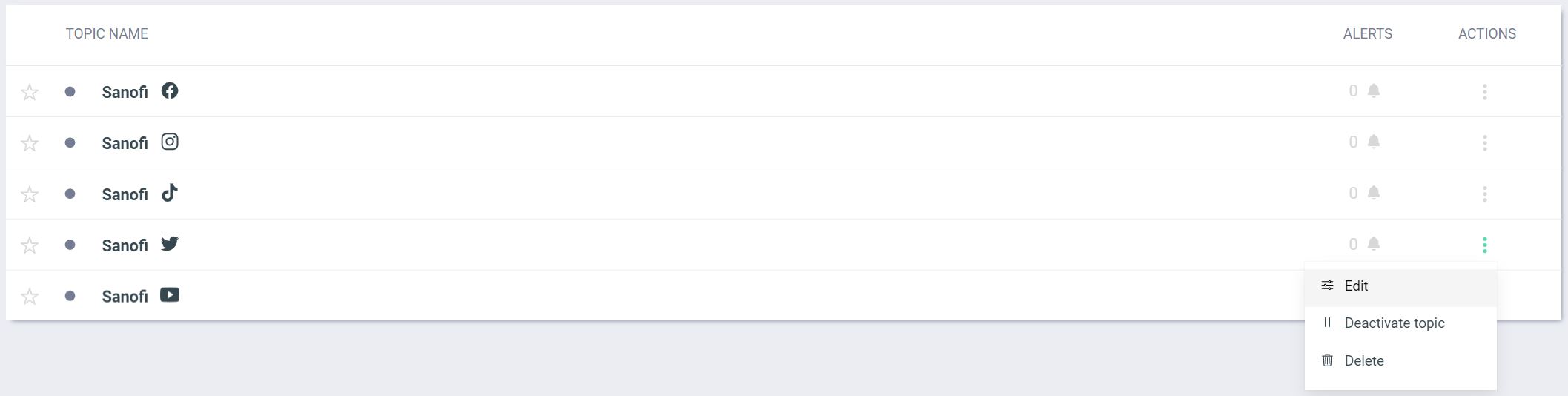
If you need, you can edit your Topic any time by clicking on the button "**Edit**" :
{% endtab %}
{% tab title="Facebook" %}
To create a Facebook Topic, you can define all the key-words and/ir the public pages that you want to monitor :
* The key-words that you need to monitor need to be specified in the first section "**Rules**". You can access the list of the operators that are available on Facebook.
* The pages that you need to monitor, need to be specified on the second section "Pages", while specifying only one page per line.
{% hint style="info" %}
**If you only want to monitor key-words or pages**
It is possible to only monitor key-words without adding Facebook pages or on the contrary, only monitor Facebook pages without adding key-words, according to your needs.
{% endhint %}
**Where can you find the page name on Facebook ?**
If you want to find the name of a public Facebook page, you can go on and search for the page you're looking for, in the search bar.
The name of the page is at the end of the URL, after [www.facebook.com/PageName](http://www.facebook.com/PageName) or after the @.
For example, for the Bloomberg media, the name of the public Facebook page is **bloombergbusiness :**
Some Facebook pages don't have an official name but only an ID that you will need to inform in Visibrain if you want to monitor this page.
This ID is also in the URL :
Then, you can choose the language you want to monitor the topic. If you want to catch any language, just leave ***Any language*** in the drop-down menu.
When the rules that you chose is correct, you can click on the ***"Create Topic"*** button. You will automatically retrieve the last 30 days of data.
{% endtab %}
{% tab title="Instagram" %}
To create a Topic on Instagram, you need to define the keywords or/and the public accounts you want to monitor :
The keywords you want to monitor, must be be entered in the first ***Rules*** field. You can access the [Instagram operators list](https://help.visibrain.com/~/revisions/Sg0jEnRI9hg61KE4OFRP/useful-documents/list-of-operators-to-add-filters/instagram).
The accounts you want to monitor must be entered in the second ***Users*** field. You must enter only one item per line.
{% hint style="info" %}
**If you want to monitor only keywords or accounts**
It's possible to only monitor keywords without adding Instagram accounts or on the contrary, only monitor Instagram accounts without adding keywords, depending on your needs.
{% endhint %}
**Where can you find an Instagram username ?**
To find the name of an Instagram account, you can go to and search for the account you're looking for, in the search bar. The account name is at the end of the URL, after [www.instagram.com/AccountUsername](http://www.instagram.com/AccountUsername).
For example, for the media Bloomberg, the Instagram account is **bloomberg :**
Then you can choose the language you want to monitor you topic in. If you want to catch any language, just leave ***Any language*** in the drop-down menu.
When the rules of your ***Topic*** is correct, you can click on the ***"Create Topic"*** button. You will automatically retrieve the last 30 days of data.
{% endtab %}
{% tab title="TikTok" %}
To create a Topic on TikTok, you need to define the keywords or/and the public accounts you want to monitor :
The keywords you want to monitor, must be be entered in the first ***Rules*** field. You can access the [TikTok operators list](https://help.visibrain.com/~/revisions/Sg0jEnRI9hg61KE4OFRP/useful-documents/list-of-operators-to-add-filters/tiktok).
The accounts you want to monitor must be entered in the second ***Users*** field. You must enter only one item per line.
{% hint style="info" %}
**If you want to monitor only keywords or accounts**
It's possible to only monitor keywords without adding TikTok accounts or on the contrary, only monitor TikTok accounts without adding keywords, depending on your needs.
{% endhint %}
**Where can you find a TikTok username ?**
To find the name of a TikTok account, you can go to and search for the account you're looking for in the search bar. The account name is at the end of the URL, after [www.tiktok.com/@AccountUsername](http://www.tiktok.com/@AccountUsername)
For example, the account of the media Bloomberg is **bloomberg** :
Then you can choose the language you want to monitor you topic in. If you want to catch any language, just leave ***Any language*** in the drop-down menu.
When the rules of your ***Topic*** is correct, you can click on the ***"Create Topic"*** button. You will automatically retrieve the last 30 days of data.
{% endtab %}
{% tab title="YouTube" %}
To create a Topic on YouTube, you need to define the keywords or/and the public accounts you want to monitor :
The keywords you want to monitor, must be be entered in the first ***Rules*** field. You can access the [YouTube operators list](#youtube).
The channels you want to monitor must be entered in the second field ***Channels.*** NB: only the ID of the channel must be indicated in Visibrain.
{% hint style="info" %}
**If you want to monitor only keywords or accounts**
It's possible to only monitor keywords without adding YouTube channels or on the contrary, only monitor YouTube channels without adding keywords, depending on your needs.
{% endhint %}
**Where can you find a YouTube channel ID ?**
To find the YouTube channel ID, you can go on and search for the channel you're looking for in the search bar.
When you're in the section "HOME" of the channel you're looking for, you can right-click with your mouse and select "Display the source code of the page".
A page as the one below will display :
You can press **Ctrl+F** on your keyboard to open the search field and type the keyword **externalid**, as below. You will then see the ID of the channel you want to focus on, displayed as a series of numbers and letters, surrounded by quotation marks. You can then copy this ID (without the quote marks) and enter it into Visibrain in the Channels field :
Then you can choose the language you want to monitor you topic in. If you want to catch any language, just leave ***Any language*** in the drop-down menu.
When the rules of your ***Topic*** is correct, you can click on the ***"Create Topic"*** button. You will automatically retrieve the last 30 days of data.
{% endtab %}
{% tab title="Threads" %}
To create a topic on Threads, you need to define the keywords or/and the public accounts you want to monitor :
The keywords you want to monitor, must be be entered in the first ***Keywords*** field. You can access the [Threads operators list](https://help.visibrain.com/~/revisions/Sg0jEnRI9hg61KE4OFRP/useful-documents/list-of-operators-to-create-a-topic/facebook-instagram-youtube-tiktok-threads-telegram-bluesky#list-of-operators-for-the-rules-block).
The accounts you want to monitor must be entered in the second field ***Users.*** \
{% hint style="info" %}
**If you want to monitor only keywords or accounts**
It's possible to only monitor keywords without adding Threads accounts or on the contrary, only monitor Threads accounts without adding keywords, depending on your needs.
{% endhint %}
\ **Where can you find a Threads username ?**\
\
To find the name of a Threads account, you can go to [https://www.threads.net](https://www.threads.net/) and search for the account you're looking for, in the search bar. The account name is at the end of the URL, after [www.threads.net/@AccountUsername](http://www.threads.net/@AccountUsername).
For example, for the media Bloomberg, the Threads account is **bloomberg :** \
Then you can choose the language you want to monitor your topic in. If you want to monitor any language, just leave ***Any language*** in the drop-down menu.
When the rules of your ***Topic*** is correct, you can click on the ***"Create Topic"*** button. You will automatically retrieve the last 30 days of data.
{% endtab %}
{% tab title="Telegram" %}
To create a Topic on Telegram, you need to define the keywords or/and the public channels you want to monitor :
The keywords you want to monitor, must be be entered in the first ***Keywords*** field. You can access the [Telegram operators list](https://help.visibrain.com/~/revisions/Sg0jEnRI9hg61KE4OFRP/useful-documents/list-of-operators-to-create-a-topic/facebook-instagram-youtube-tiktok-threads-telegram-bluesky).
The accounts you want to monitor must be entered in the second ***Channels*** field. You must enter only one item per line.\
{% hint style="info" %}
**If you want to monitor only keywords or accounts**
It's possible to only monitor keywords without adding Telegram channels or on the contrary, only monitor Telegram channels without adding keywords, depending on your needs.
{% endhint %}
**Where can you find a channel's name ?**\
\
To find the name of a Telegram channel, you can go to and download Telegram on your computer or your smartphone if it's not already the case.\
\
The account name is at the end of the URL, after [www.threads.net/@AccountUsername](http://www.threads.net/@AccountUsername).
For example, for the media Bloomberg, the Telegram channel is **bloomberg** : \
\
On your computer's app, you can get the channel's name by clicking on the three little dots on the top right of the conversation. Click on **"infos"**, you will then have access to the channel's name in the **"share link"** section :
On your smartphone's app, you can get the channel's name by clicking on the channel's picture on the top right of the conversation. You will then have access to the channel's name in the **"share link"** section, just at the end of the URL **** :
Then you can choose the language you want to monitor your topic in. If you want to monitor any language, just leave ***Any language*** in the drop-down menu.
When the rules of your ***Topic*** are correct, you can click on the ***"Create Topic"*** button. You will automatically retrieve the last 30 days of data.
{% endtab %}
{% tab title="LinkedIn" %}
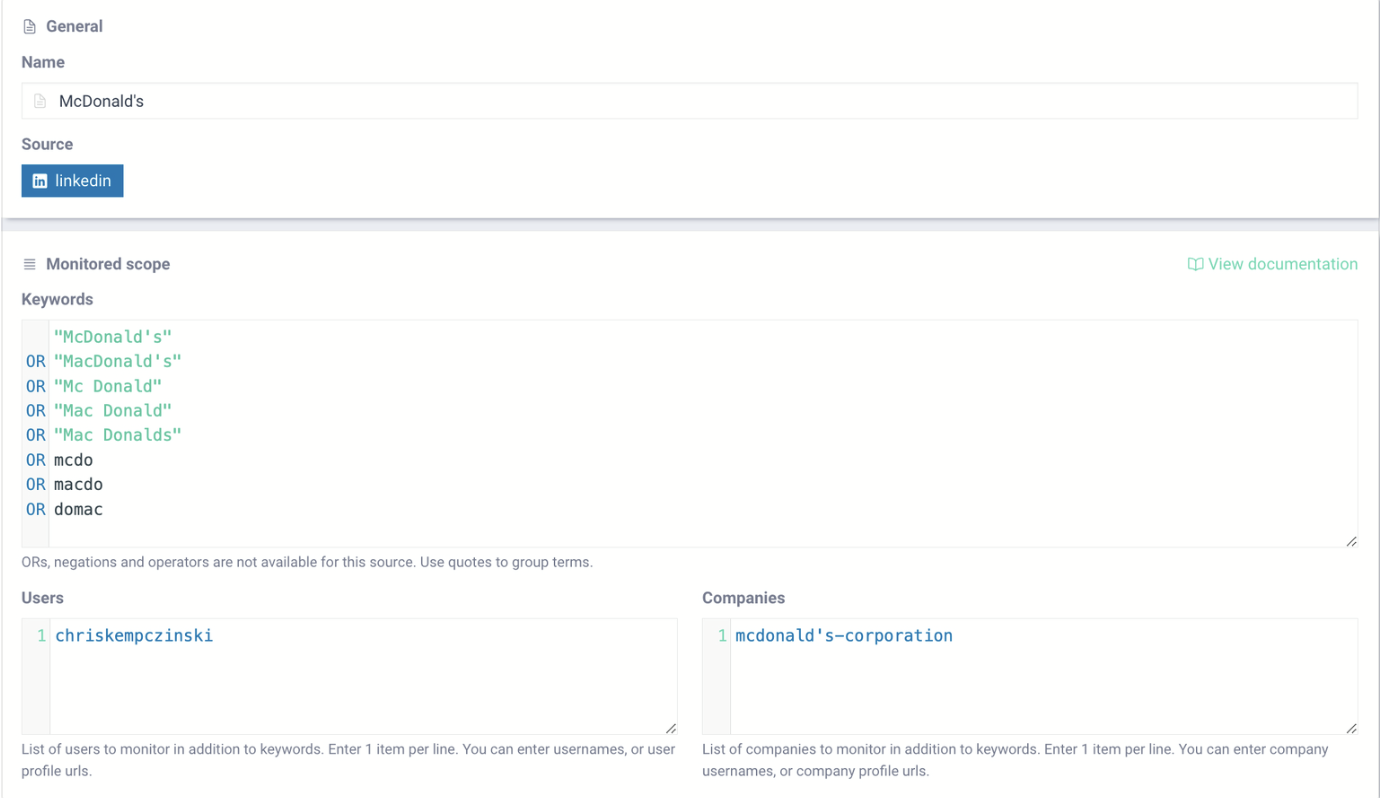
To create a topic on LinkedIn, you need to define the keywords or/and the companies or/and the users you want to monitor :
* The keywords must be entered in the first ***Keywords*** field. You can access [the list of operators available to create new topics on LinkedIn](https://help.visibrain.com/~/revisions/Sg0jEnRI9hg61KE4OFRP/useful-documents/list-of-operators-to-create-a-topic/linkedin).
* The users must be entered in the second ***Users*** field, you must enter only one item per line.
* The companies must be entered in the third ***Companies*** field, you must enter only one item per line.
{% hint style="info" %}
**If you want to monitor only keywords or users/companies**
It's possible to only monitor keywords without adding companies/users or on the contrary, only monitor companies/users without adding keywords, depending on your needs.
{% endhint %}
:warning: **Asterisks do not work for this network**, you just have to put the different variants of your keywords. It is not necessary to mention the accents and plurals for LinkedIn : the word *bank* will also monitor *banks*.\
\ **Where can you find a LinkedIn username or a company's name ?**\
\
To find the name of a LinkedIn page, you can go to and search for the page you're looking for, in the search bar. The username or the company's name is at the end of the URL, after [www.linkedin.com/company/AccountUsername](http://www.linkedin.com/company/AccountUsername).
For example, for the media Bloomberg, the LinkedIn page is **bloomberg :**
When the rules of your ***Topic*** are correct, you can click on the ***"Create Topic"*** button. You will automatically retrieve up to 500 posts per rule from the last 30 days of data.
{% endtab %}
{% endtabs %}
## 3. Add posts to your topic
A post isn't showing up in your topic? You have the option to manually add a post if necessary :
{% embed url="" %}