# Alerts
The “Alerts” section enables you to create real time Alerts so as to detect weak signals on Topics you are monitoring.
{% hint style="info" %}
You can create as many Alerts as you want, you have unlimited number of Alerts with Visibrain.
{% endhint %}
{% embed url="" %}
### Create an Alert
*You have several options to create an Alert.*
**1 -** You can start creating an Alert through the [Explore Section](https://help.visibrain.com/~/revisions/Sg0jEnRI9hg61KE4OFRP/platform/explore) of the platform, by clicking on the “floppy disk” icon of your interface, then you can click on “create an alert”.
{% hint style="success" %}
Alerts are real time notifications whereas Reports are recurrent digests of your monitored Topics (more information about Reports by clicking [here](https://help.visibrain.com/~/revisions/Sg0jEnRI9hg61KE4OFRP/platform/reports)).
{% endhint %}
**2 -** By clicking on the ALERTS tab of your platform, you can see all your alerts (active or inactive ones). You can also create a new one on this page.
### 1 - Provide a title
{% hint style="success" %}
We advise you to give a very clear title (e.g. **Brand monitoring – Influencer detection**) so the recipients of the Alert can understand the purpose of this Alert.
{% endhint %}
### 2 - Choose the recipients
You can add as many recipients as you want, including people who doesn’t have any access to Visibrain.
### 3 - Choose your trigger mode
You have the choice between 4 trigger modes to receive your Alerts:
* [By mail](https://help.visibrain.com/~/revisions/Sg0jEnRI9hg61KE4OFRP/platform/alerts/email)
* [Slack](https://help.visibrain.com/~/revisions/Sg0jEnRI9hg61KE4OFRP/platform/alerts/slack)
* [Telegram](https://help.visibrain.com/~/revisions/Sg0jEnRI9hg61KE4OFRP/platform/alerts/telegram)
* [SMS](https://help.visibrain.com/~/revisions/Sg0jEnRI9hg61KE4OFRP/platform/alerts/sms) (paid option)
{% hint style="info" %}
If you want to use another trigger mode, please make a request to your Account Manager.
{% endhint %}
### 4 - Choose your Alert type
First of all, you have to choose a Topic or a Subtopic on which you need to set an Alert on.
**You can choose between different Alert types:**
{% tabs %}
{% tab title="Twitter" %}
###
### Abnormal Activity
You receive a notification as soon as the global volume of your Topic significantly increases. This Alert can be configured with a smart or a custom option.
###
### Every Post
You receive a notification as soon as a new post has been published (including a new retweet). It is important to set this Alert up on a Topic with a very low volume to avoid being spammed. We advise you to use [filters](https://help.visibrain.com/~/revisions/Sg0jEnRI9hg61KE4OFRP/useful-documents/list-of-operators-to-add-filters) to focus on specific criteria. For example, you can focus on a specific account or keyword, or on specific communities (journalists, politics, influencers, etc.) to configure this Alert.
###
### Every Article
You receive a notification as soon as a new article is shared on the selected social media.
###
### Trending Item
You receive a notification as soon as a hashtag, a tweet or an article is going viral on your Topic. You have to choose the trigger threshold of the Alert according to your Topic.
{% endtab %}
{% tab title="Other social media" %}
### Every post
You receive a notification as soon as a new post has been published on the selected Social Media. It is important to set this Alert up on a Topic with a very low volume to avoid being spammed. We advise you to use [filters](https://help.visibrain.com/~/revisions/Sg0jEnRI9hg61KE4OFRP/useful-documents/list-of-operators-to-add-filters) to focus on specific criteria. For example, you can focus on a specific account or keyword, or on posts reaching a specific engagement) to configure this Alert.
{% hint style="success" %}
You can determine trigger thresholds for your Alerts by using [filters](https://help.visibrain.com/~/revisions/Sg0jEnRI9hg61KE4OFRP/useful-documents/list-of-operators-to-add-filters#facebook-instagram-youtube-and-tiktok). E.g.: *likes:>1000*, *views:>10*, *comments:>5*, etc.
{% endhint %}
{% endtab %}
{% endtabs %}
**Snooze option**
The snooze option enables you to customise the days and hours at which you don't wish to receive an Alert. The option is turned off by default.
{% hint style="success" %}
We recommend you to use this option to pause an Alert outside of working hours for example or when you are not available.
{% endhint %}
### 5 - Save an Alert
## The ALERTS tab
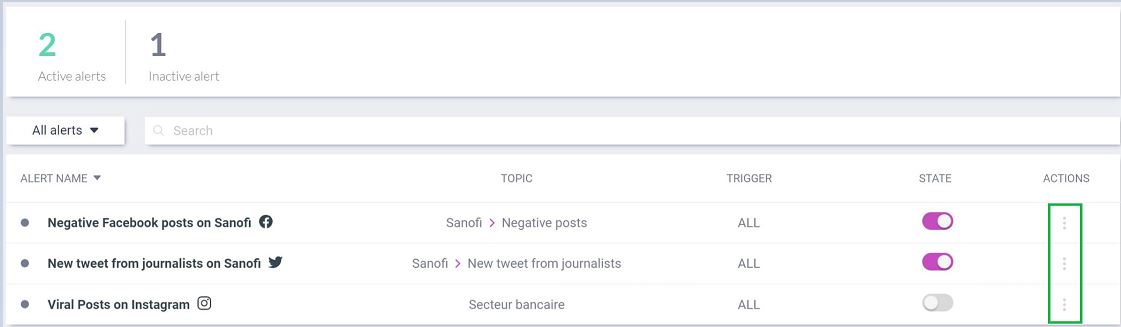
This tab enables you to access all Alerts (active and inactive) created on your account. When the "State" is turned off (in grey) the Alert is inactive.
{% hint style="info" %}
If you turn an Alert off, it will be turned off for every recipients of the Alert.
{% endhint %}
## Modify an Alert already created
You can easily modify an Alert already created by directly clicking on the Alert or by clicking on "Action".
## Focus on an e-mail address to find an Alert
You can easily find one or several Alerts with a specific recipient, by entering an e-mail address within the Search engine.