> For the complete documentation index, see [llms.txt](https://help.visibrain.com/llms.txt). Markdown versions of documentation pages are available by appending `.md` to page URLs; this page is available as [Markdown](https://help.visibrain.com/platform-guide/topics.md).
# Topics
The Topics Tab is your entry point into the Visibrain platform.
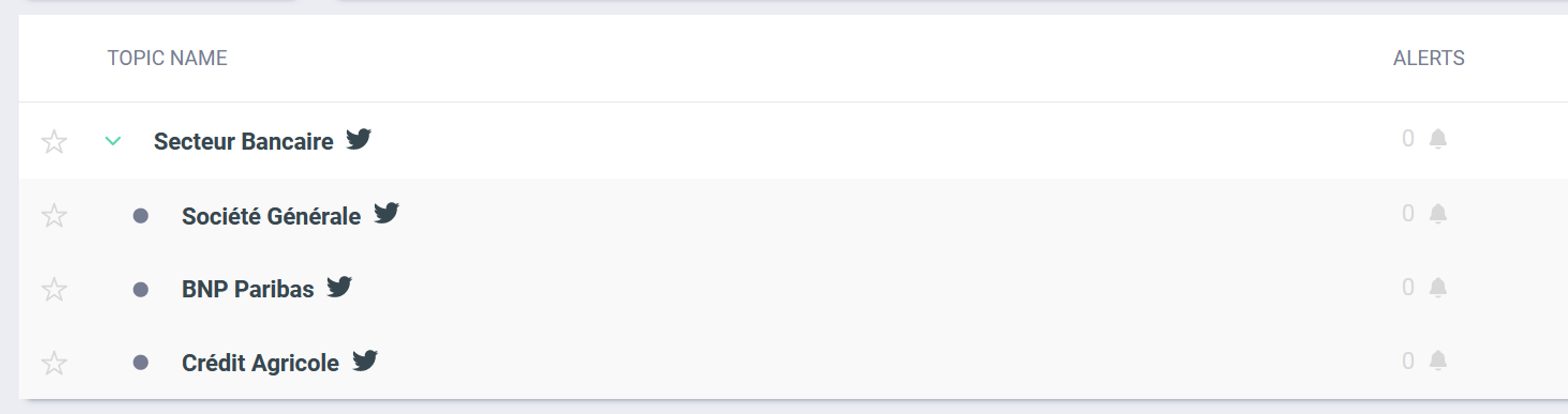
On this tab, all the Topics you have already created, are listed. They are sorted alphabetically and you can mark some of them as 'favorites' to customize your access. Click on a topic to analyse all the related data.
#### Sub-Topics
When you create Sub-Topics, they are displayed directly in your Topics page. If you want to access, you just need to click on the drop-down menu of your Topic (blue arrow on the left hand side of the title).
#### Alerts
You will find the bell symbol next to each *Topic :*
Grey bell : No alert on this *Topic.*
Yellow bell with a number : X alert(s) on this *Topic.*
#### Mark as Favorite
Click on the star on the left of the title of the Topic if you want to mark your Topic / Sub-Topic as a favorite. It will appear at the top of your Topic list.
'Favorites' are specific to each User-access, they are not shared with other members of your team.
#### Activate/Deactivate or delete a topic
If you to deactivate a Topic and pause its monitoring, you just need to click on the menu 'Actions' of the topic, on the right. You'll be able to deactivate, reactivate or delete it. Warning : if you delete a topic, you won't be able to take it back.