> For the complete documentation index, see [llms.txt](https://help.visibrain.com/llms.txt). Markdown versions of documentation pages are available by appending `.md` to page URLs; this page is available as [Markdown](https://help.visibrain.com/platform-guide/smartboards/create-a-smartboard/table.md).
# Table
The table allows you to get a more detailed view of hashtags, expressions, countries etc.
## Create or edit a *Table* block
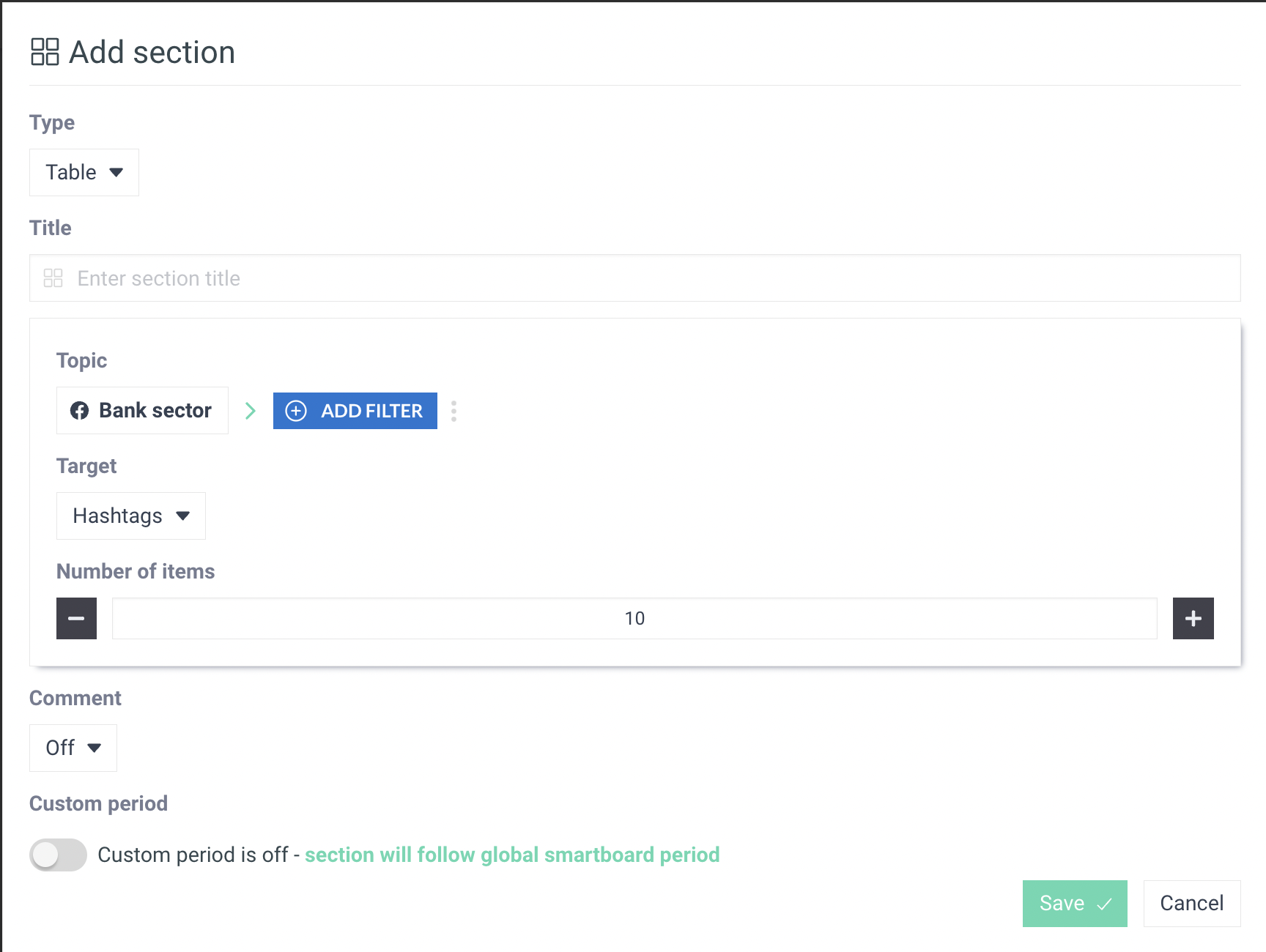
By adding a new section called *Table*, the page below will appear.
This page will allow you to add the following :
| ***Type*** | Modify the section type while keeping the associated *Topic(s)*. |
| ---------------------- | ------------------------------------------------------------------------------------------------------------------------------------------------------------------ |
| ***Title*** | Add or modify the section title. |
| ***Sources - Topic*** | Associate one or more topic(s) or sub-topic(s) with the *Table.* You can click on the *Topic* name to access the list of all *Topics*. You can also add *Filters*. |
| ***Sources - Target*** | Choose the item you need to show (hashtags, mentions, languages, emojis, countries etc). |
| ***Number of items*** | Choose the maximum number of rows you want to display. |
| ***Add sources*** | Add *Tables* associated with other *Topics* or *Subtopics*. |
| ***Comment*** | Add or edit comments to the section. You can choose the background color according to the importance of the comment (information, danger...) |
| ***Custom period*** | Option to activate if you want to give a specific period of time to your section that differs from the *Smartboard'*s one. |
## Example of a Table of users' occupations