> For the complete documentation index, see [llms.txt](https://help.visibrain.com/llms.txt). Markdown versions of documentation pages are available by appending `.md` to page URLs; this page is available as [Markdown](https://help.visibrain.com/platform-guide/explore/volume.md).
# Volume
To find the main indicators (number of posts, evolution of your topic, number of users, number of articles, number of interactions).
## Overview
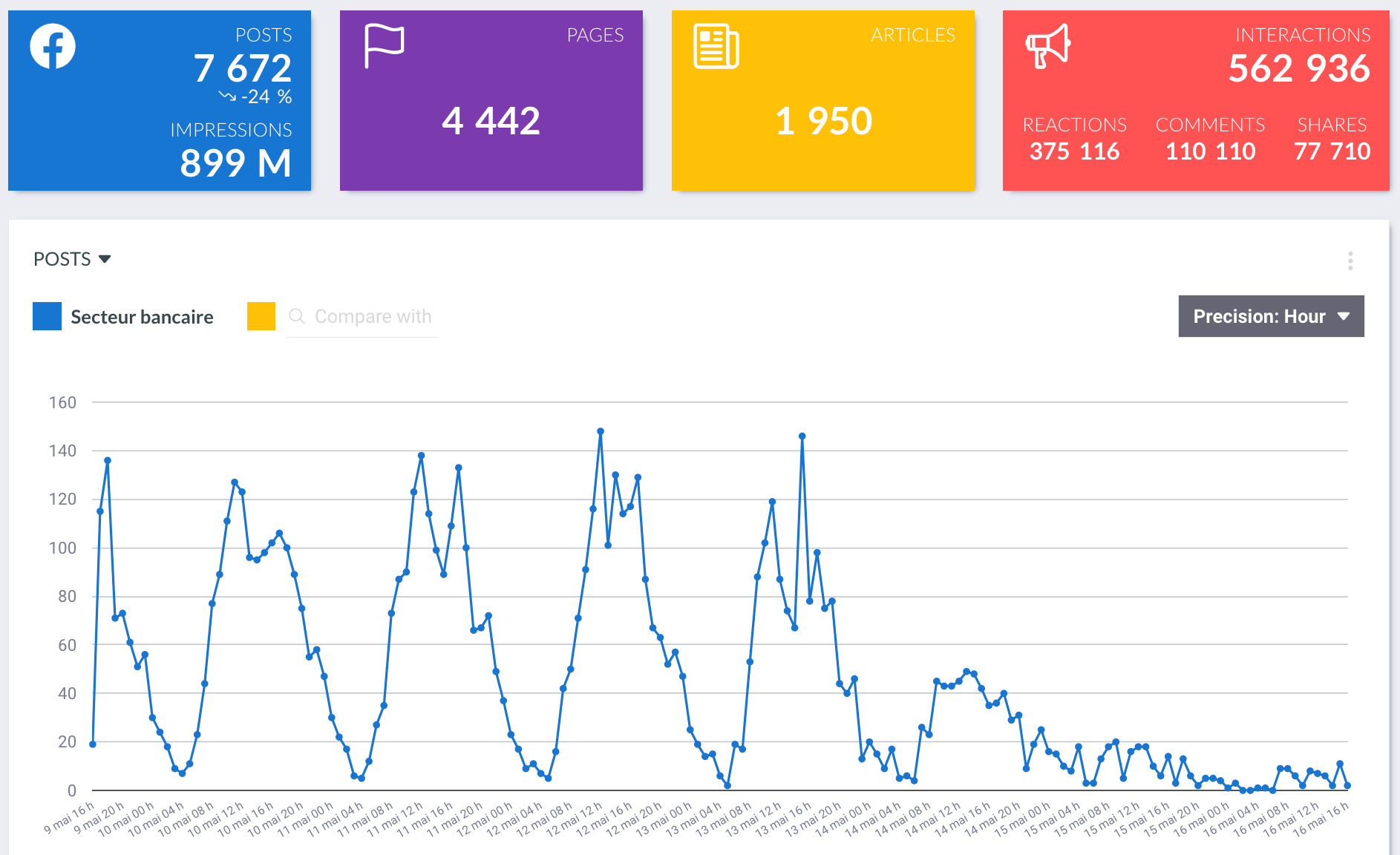
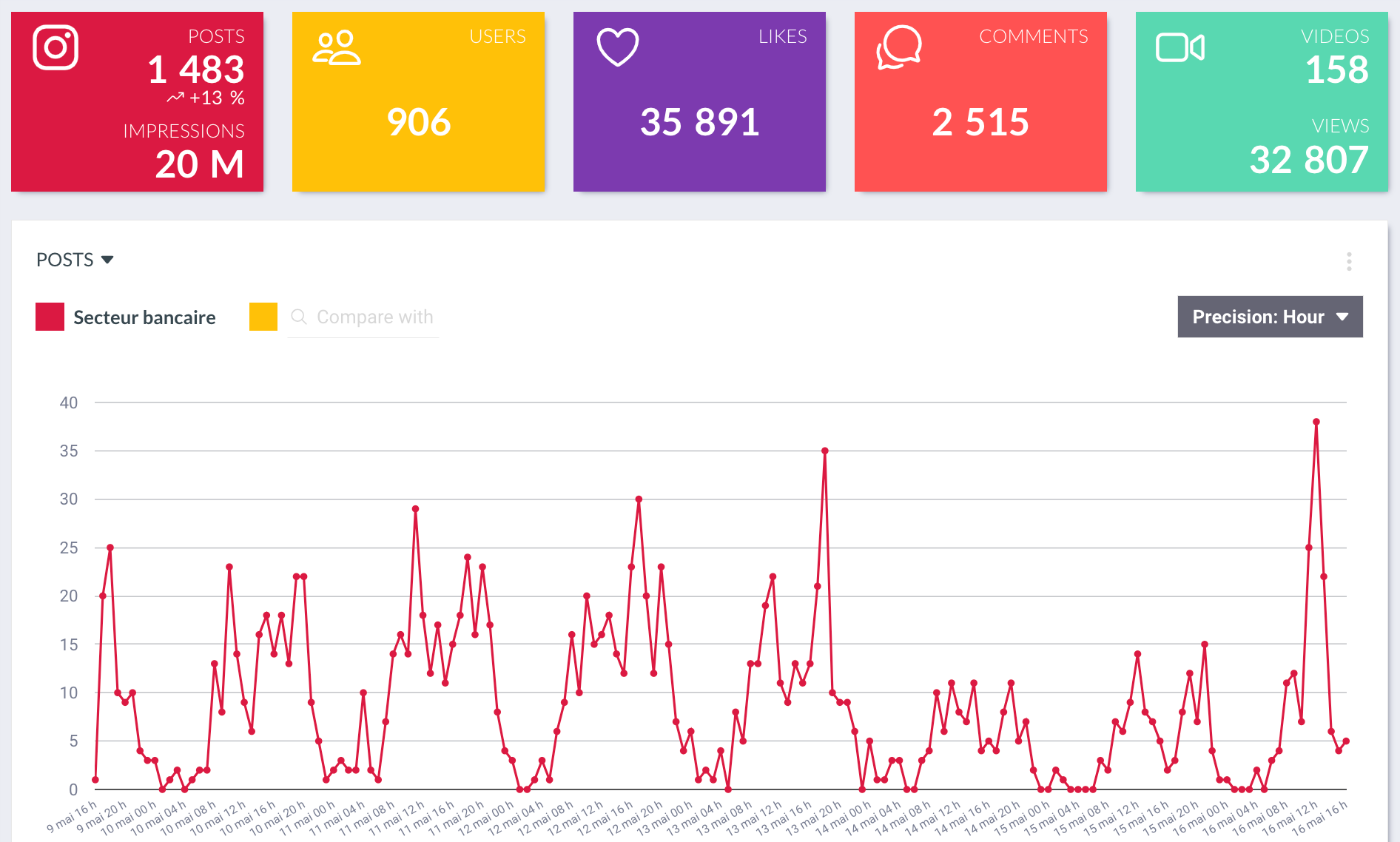
By clicking on the name of your Topic, you get into the Volume tab. This is where you will find all the following KPIs:
* Number of posts (tweets, Facebook posts, Instagram posts, Tiktok videos, Youtube videos) published and shared over the period of analysis
* The evolution of the activity over the period of analysis
* Number of users (Facebook pages, accounts (X (formerly Twitter), Instagram, TikTok) and Youtube channels) who talked about your topic during the period of analysis
* Number of articles shared on your topic during the period of analysis
{% tabs %}
{% tab title="X (formerly Twitter)" %}
{% endtab %}
{% tab title="Facebook" %}
{% endtab %}
{% tab title="Instagram" %}
{% endtab %}
{% tab title="TikTok" %}
{% endtab %}
{% tab title="YouTube" %}
{% endtab %}
{% endtabs %}
## Timeline analysis
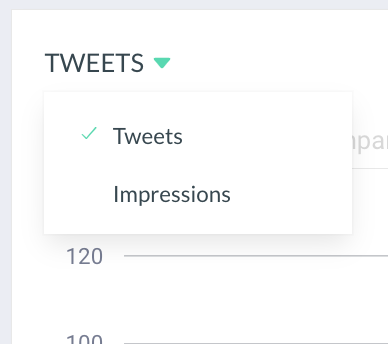
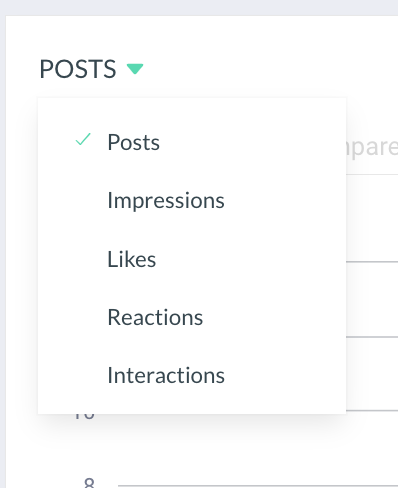
The timeline allows you to see the evolution of your topic's activity. By default, this graph will show the number of posts but you can choose the indicator that best suits you:
{% tabs %}
{% tab title="X (formerly Twitter)" %}
{% endtab %}
{% tab title="Facebook" %}
{% endtab %}
{% tab title="Instagram" %}
{% endtab %}
{% tab title="TikTok" %}
{% endtab %}
{% tab title="YouTube" %}
{% endtab %}
{% endtabs %}
### Choice of the period of analysis
You can change the period of analysis in two different ways:
1. By changing the dates with the date selector:
2. By clicking on two different points of the timeline (START / END):
### Choice of the precision
Depending on the length of the period analysed, several options are available. You will be able to choose between the following:
* *month by month* (useful for analysing trends on a long period of time)
* *day by day*
* *hour by hour*
* *minute by minut*e (useful for analysing press conferences, interviews, crises, etc.)
### Comparison between Topics
You can compare two [Topics](/master/glossary.md#topic) by clicking on *Compare with.*
You can use the drop-down menu to choose between your Topics and [Subtopic](/master/glossary.md#sub-topic)[s](/master/glossary.md#sub-topic) to compare with the Topic/Subtopic currently analysed.
You can use this feature to measure the importance or virality of one topic compared to another, highlighting a peak of mentions, but also to compare shares of voice between two topics.
If you want to compare more than two topics, you should use the [smartboards](/platform-guide/smartboards.md) feature.
{% hint style="info" %}
Because social networks are differently used, we recommend to compare topics within the same social networks.
{% endhint %}
## Exports
By clicking on the *"action"* icon, a drop-down menu offers you several exports options:
* Export CSV: to download all data gathered in this section into an Excel file
* Screenshot: to download a PNG file
* Add to smartboard: to add the data or graph to the smartboard of your choice