> For the complete documentation index, see [llms.txt](https://help.visibrain.com/llms.txt). Markdown versions of documentation pages are available by appending `.md` to page URLs; this page is available as [Markdown](https://help.visibrain.com/filters-and-helpful-documents/list-of-operators-to-create-a-topic/linkedin.md).
# LinkedIn
Here are the operators available to create a Topic on LinkedIn.
{% hint style="info" %}
The ***CTRL+F*** command and ***Command+F*** on a Macbook allows you to easily find your operator in the table.
{% endhint %}
{% hint style="success" %}
You can download this page in PDF.
{% endhint %}
{% hint style="success" %}
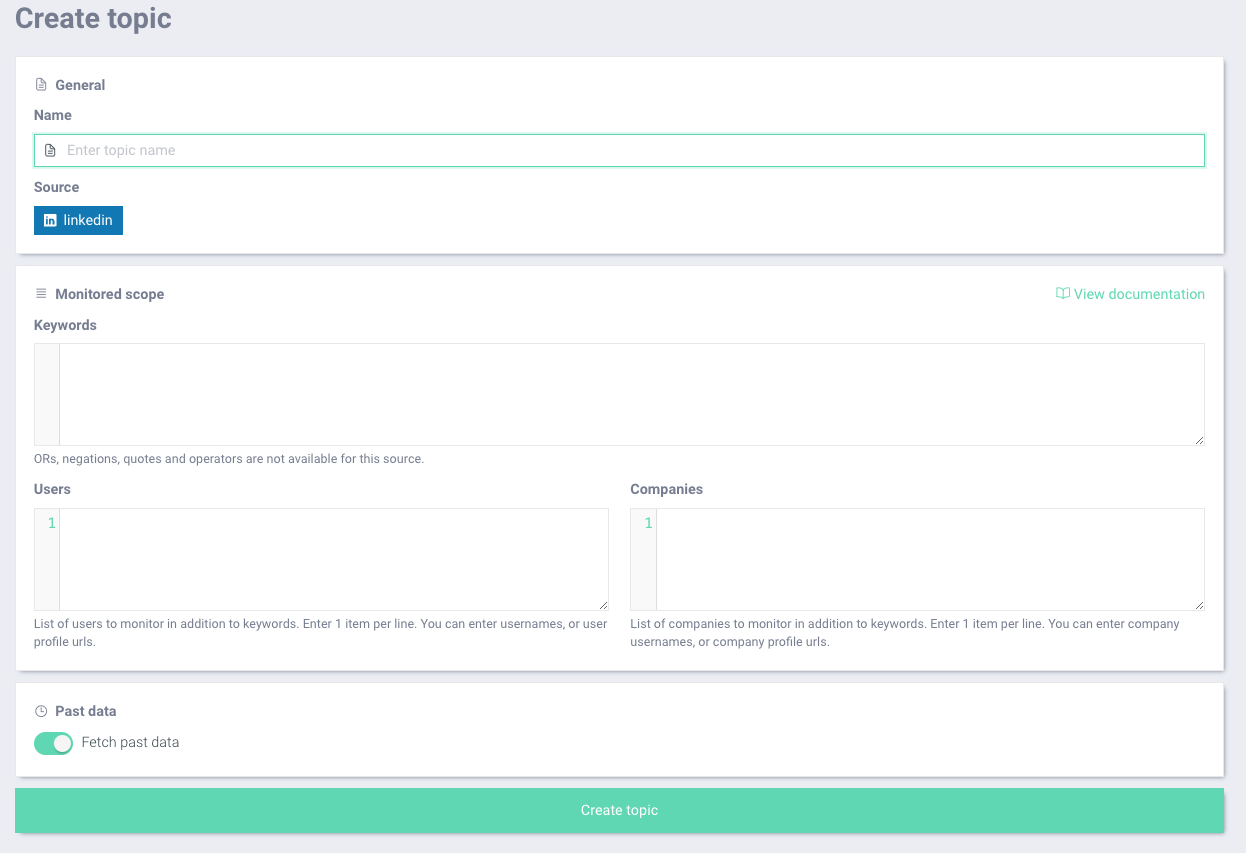
Keywords should be added in the Keywords's bloc, Users, in the user's bloc and company pages in the companies' bloc.
{% endhint %}
### List of operators for the rules block
| Symbol | Use | Example |
| ---------------------- | ----------------------------------------------------- | ---------------------------------------------------------------------------------------------------------------------------------------------------------------------------------------- |
| **space** | To associate words, corresponds to the logical "AND". |
bank scandal To search posts that contain these two keywords, regardless of their position in the post.
|
| **#hashtag** | Captures all posts containing the hashtag. |
#car Captures all publications with the hashtag #car in it.
Does NOT pick up posts with the keyword "car", without #.
|
| **Quotation marks ""** | Captures posts containing the exact expression |
"blue car" Captures posts with the key-expression 'blue car' in it. It doesn't search for the following content : the blue auto and the yellow car.
|
| **mention\_company:** | Captures posts mentionning a specific company |
mention\_company:the-white-house Captures posts mentionning the White House specifically
|
| **mention\_member:** | Captures posts mentionning a specific person |
|
{% hint style="warning" %}
No need to add capital letter, plurals and accent variations, Visibrain will automatically take in all words carrying the same character sequence.
{% endhint %}
{% hint style="success" %}
Boolean operators (OR, -, parenthesis, quotes, @ ...) will not be taken into account on this monitoring module. \
We recommend building your monitoring request as large as possible and using our [filtering system](/filters-and-helpful-documents/list-of-operators-to-add-filters/linkedin.md) once the data's collected.
{% endhint %}